

Practice with Training Mode
Este conteúdo não está disponível em sua língua ainda.
Training mode lets you create practice incidents, run exercises, and get your team comfortable with Wildflyer — without any risk of interfering with real operations.
Turn on Training Mode
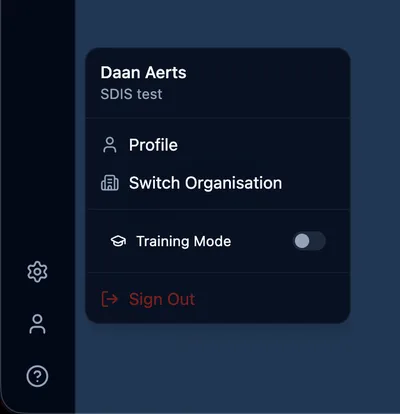
Section titled “Turn on Training Mode”- Click your avatar in the bottom-left corner to open the profile menu
- Toggle Training Mode on
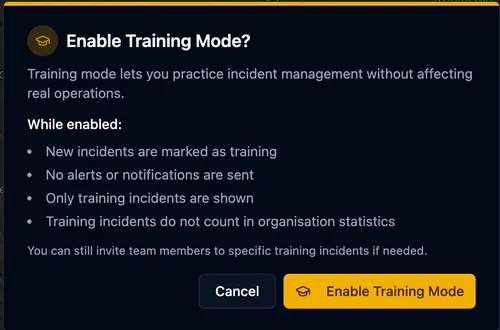
A confirmation dialog explains what will change. Click Enable Training Mode to confirm.
Once active, a yellow banner appears at the top of the screen so you always know you’re in training mode.
What changes in Training Mode
Section titled “What changes in Training Mode”- Incidents you create are marked as training — they’re kept separate from real ones
- No notifications are sent — your team won’t receive alerts for practice incidents
- Only training incidents are shown — real incidents are hidden while training mode is on
- Statistics are unaffected — training incidents don’t count in your organisation’s numbers
You can still invite team members to training incidents, so it works well for group exercises.
Turn it off
Section titled “Turn it off”Click Turn off in the yellow banner, or toggle it off in the profile menu. No confirmation needed — you’re back to normal immediately.
- Use training mode when onboarding new team members — let them create incidents, draw perimeters, and explore the app without worrying about mistakes
- Run a practice exercise before fire season so everyone knows the workflow
- Training mode sticks between sessions — if you close the app and come back, you’ll still be in training mode until you turn it off