

Browse Incidents
Ce contenu n’est pas encore disponible dans votre langue.
The incidents panel shows everything happening in your territory — fires burning now, recent events, and your full history.
The incidents panel has two display modes, switchable via the Map and Table buttons at the top right.
Map view shows incidents as a list alongside the map. The map markers update as you scroll or filter the list.
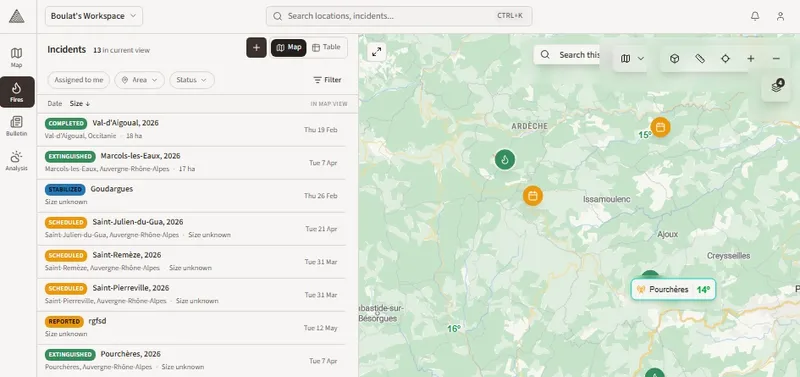
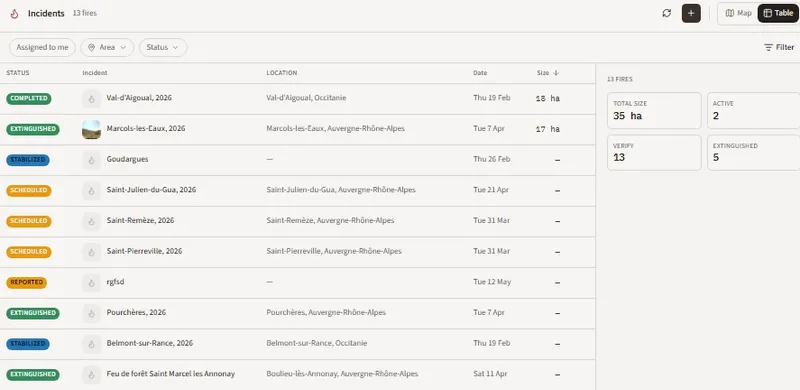
Table view removes the map and displays incidents in a full-width table with additional columns — location, date, and size — making it easier to scan and compare across a large number of incidents.
Filters
Section titled “Filters”Use the Assigned to me, Area, and Status filters to narrow the list. The Filter button on the right opens additional options. The list and map update in real time as filters are applied.
Read an incident row
Section titled “Read an incident row”Each incident shows:
- Status badge — colour-coded (Completed, Extinguished, Stabilized, Scheduled, Reported, False Alarm)
- Name and optional thumbnail
- Location — city and region
- Date — when the incident was recorded
- Size — burnt area if known
Click any row to open its detail page.
Summary panel
Section titled “Summary panel”In table view, a summary panel on the right shows aggregate stats for the current filter:
- Total size (ha)
- Active count
- Verify count
- Extinguished count
- The map always syncs with your current filters — markers update as you apply or remove filters
- Use table view for post-season reviews where you need to scan many incidents at once
- In training mode, only training incidents are shown